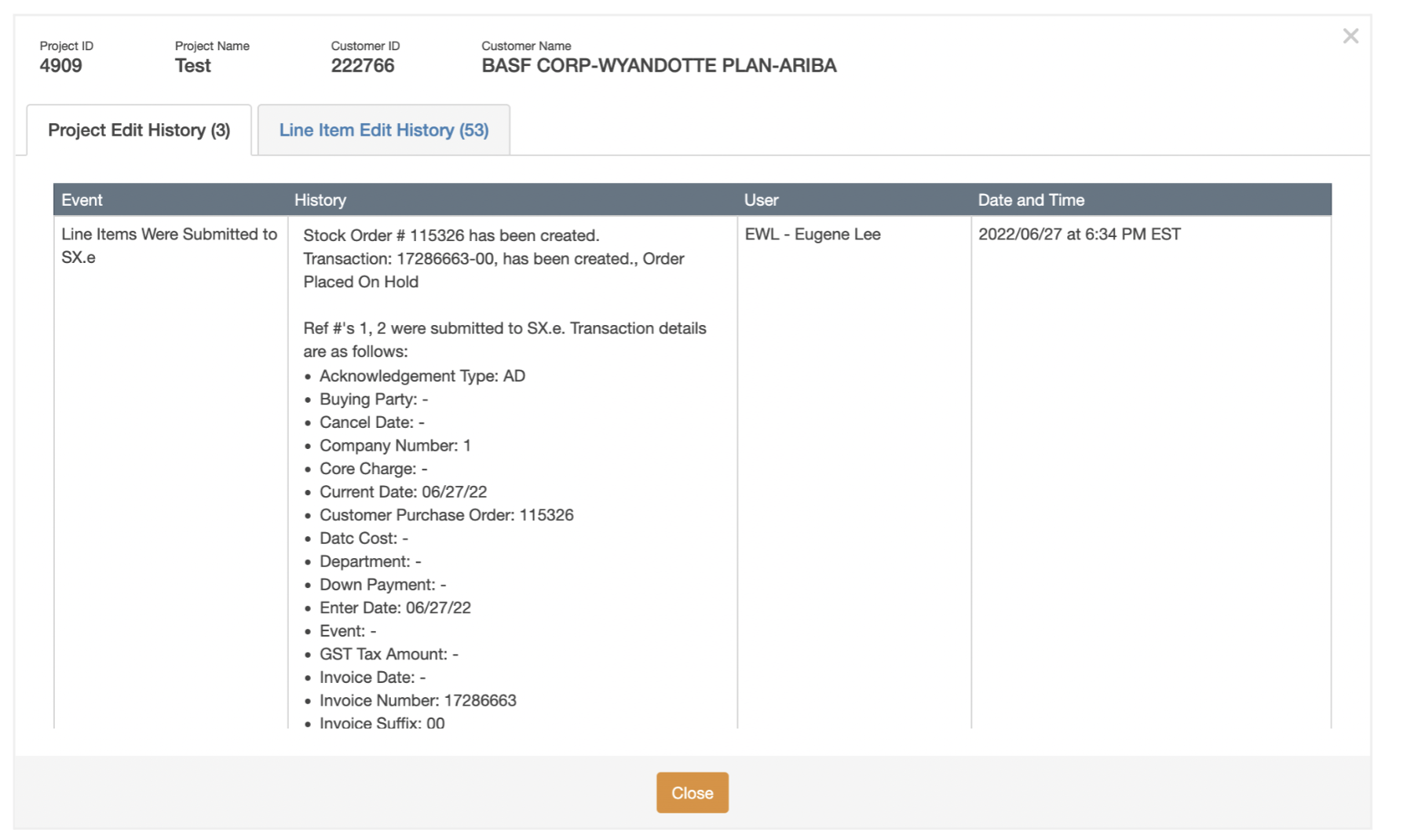
You can use quote-to-order to connect VallenIQ with SX.e.
First, select the line items you’d like to submit for the new order:
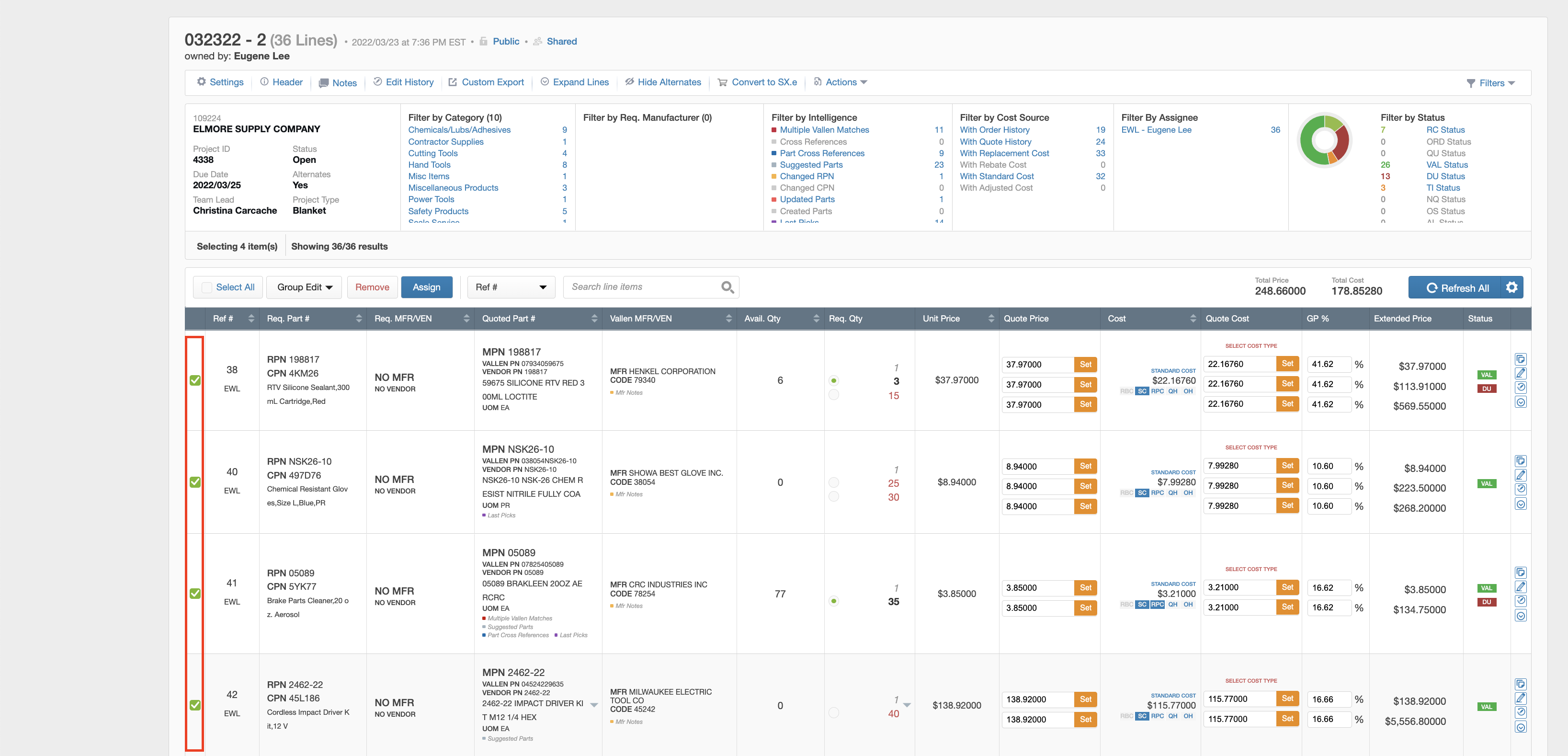
Note that when multiple requested quantity breaks exist for selected line items, the system will currently use the value for Requested Quantity 1 when creating your order.

Then, click the "Convert to SX.e "button in the Quote Actions bar at the top of the quote:

The system will then bring up the order details modal, where you can specify order level information:

-
Stock Order (SO)
-
Future Order (FO)
-
Direct Order (DO)
-
Quote (QU)
Once the Order Details are defined, VallenIQ will take you to the Order Validation modal, where both order and item details are summarized, and the system will highlight fields that will cause errors once submitted.
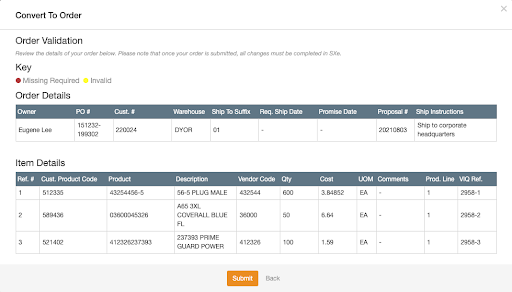
Review the details in this modal and correct all errors that appear in the two tables by exiting from this pop-up, correcting issues in the line items themselves or the details of the order, selecting the Convert to Order button again.
If there are errors in the Order Details section, the Submit button will not be selectable, and the system will not let you submit the order:
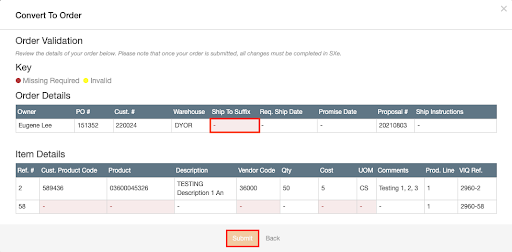
If the Order Details section does not contain errors, but the Item Details section does contain errors, the system will let you submit the details of the order.
However, in the next step, VallenIQ will display the Errors Found modal, where the system will highlight only the line items and the specific fields in Item Details that have errors. Line items that were selected for orders that do not have errors will not display in the Errors Found modal.
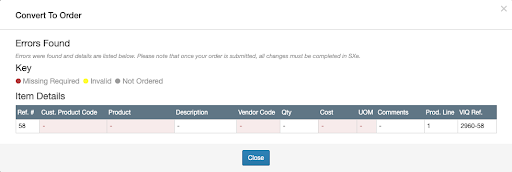
All errors called out in the Errors Found modal must be resolved before the order can be successfully submitted.
After the errors are identified, users should close the Errors Found modal, make the appropriate changes to line items that have issues, and restart the Convert to Order workflow.
If there are no errors with both the Order Details and Line Item details sections, the system will allow users to submit their order.
Once all errors are resolved and you successfully run through the Convert to Order workflow, the order can be submitted by clicking the Submit button.
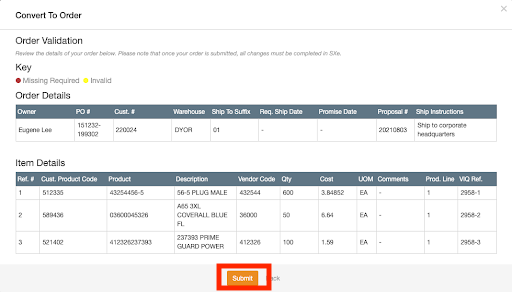
The system will then display the Customer Purchase Order acknowledgment modal:
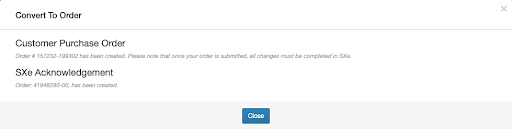
In this modal, the system will display the customer purchase order number from SX.e under the Customer Purchase Order title.
In the SX.e Acknowledgement section, users will see the acknowledgment message that is returned directly from SX.e after the order has successfully been created.
Note that once the order is submitted, if any changes are required for the order, these changes must be completed within SX.e, instead of VallenIQ.
You can also check 'Project Edit History' to review your Convert-to-Sx.e details: