VallenIQ allows you to import data directly to line items via a .xlsx file.
Before importing, you'll need to ensure your spreadsheet file contains a reference column, in which the number in the column matches the line item you are updating.
The line items you choose to update within VallenIQ must also have MPNs. Line items without MPNs can not be updated via importing data.
Select the line items you'd like to import data to. Then, click the Group Edit button, and select Import Data
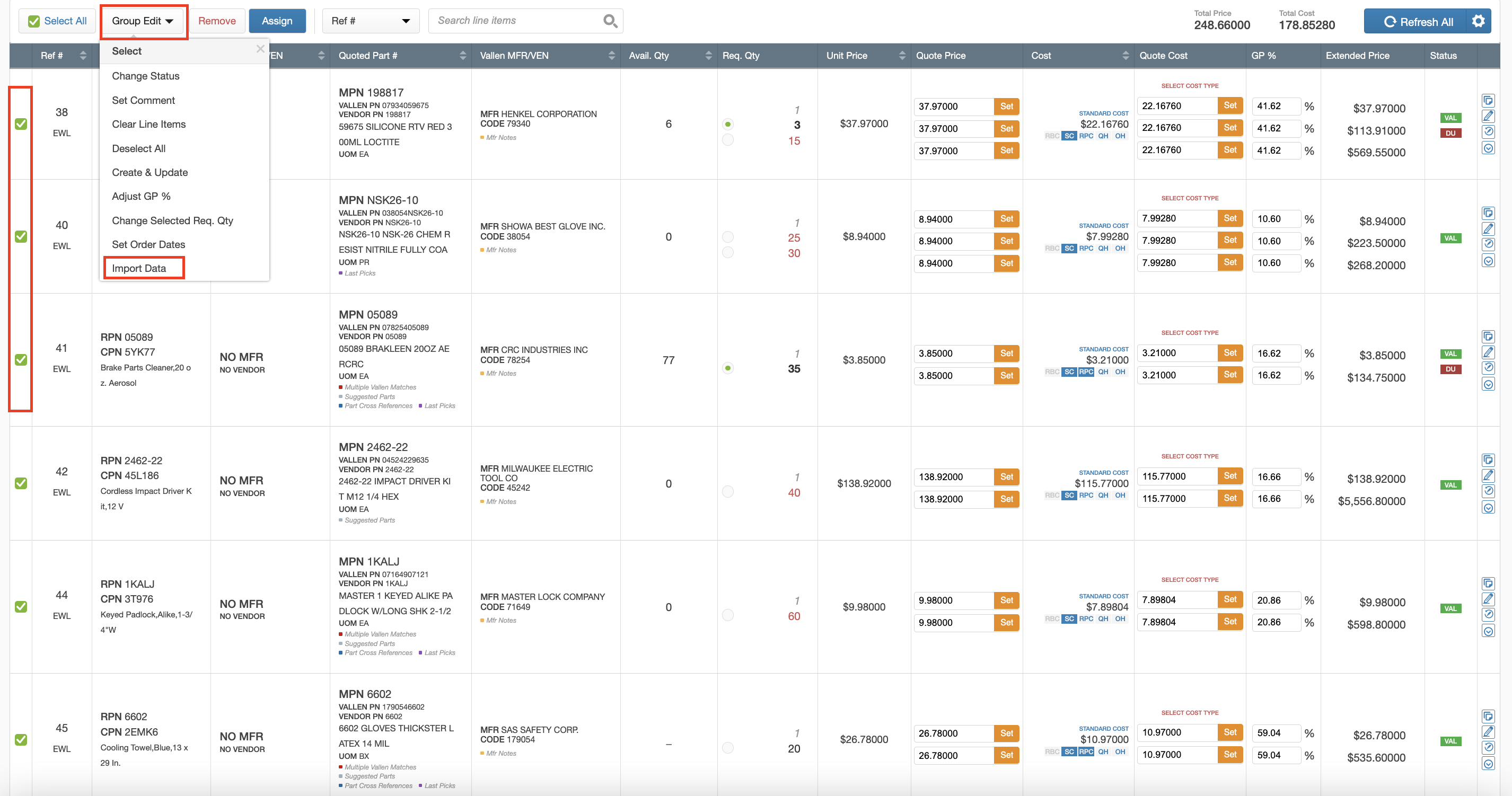
VallenIQ will then ask you to choose the file you want to import. Select the related .xlsx file.
Mapping Your Columns
After selecting your .xlsx file, you'll be shown the column mapping preview screen.
'VallenIQ Ref #' will be pre-populated, corresponding with the existing reference numbers of your selected line items.
To start the import process, you'll need to ensure the 'Ref #' column is correctly mapped and matches the 'VallenIQ Ref #' column.
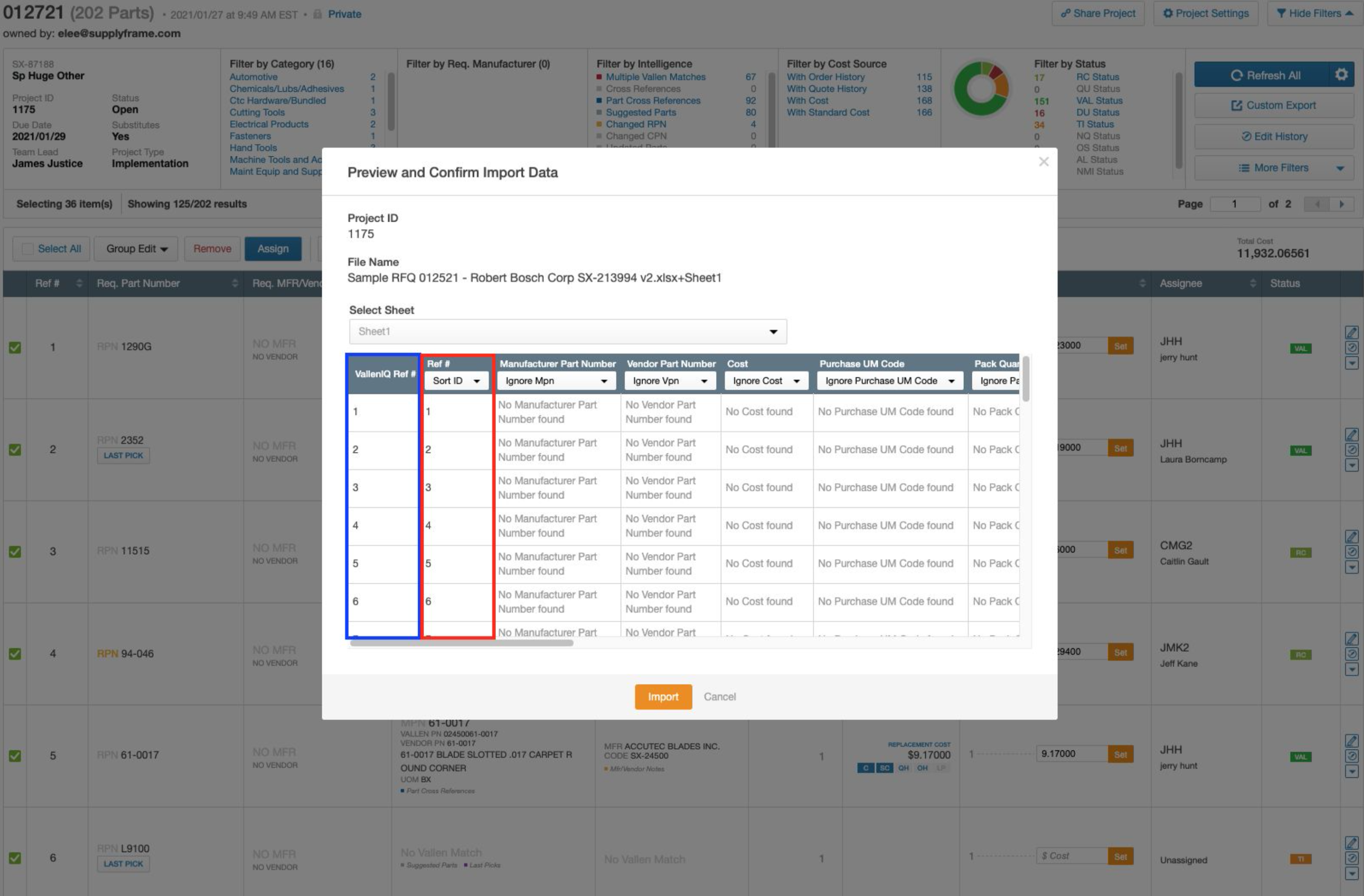
After ensuring the two columns match, you can map the rest of your columns. After you are done mapping, click the orange Import button.
Once your import is complete, you'll be shown a breakdown of your import. In the top Import Metrics section, you'll see a breakdown of your imported lines.
Below metrics, you'll see a detailed Import Summary, which shows details about the lines imported with exceptions and information on lines with errors that were not able to be imported.
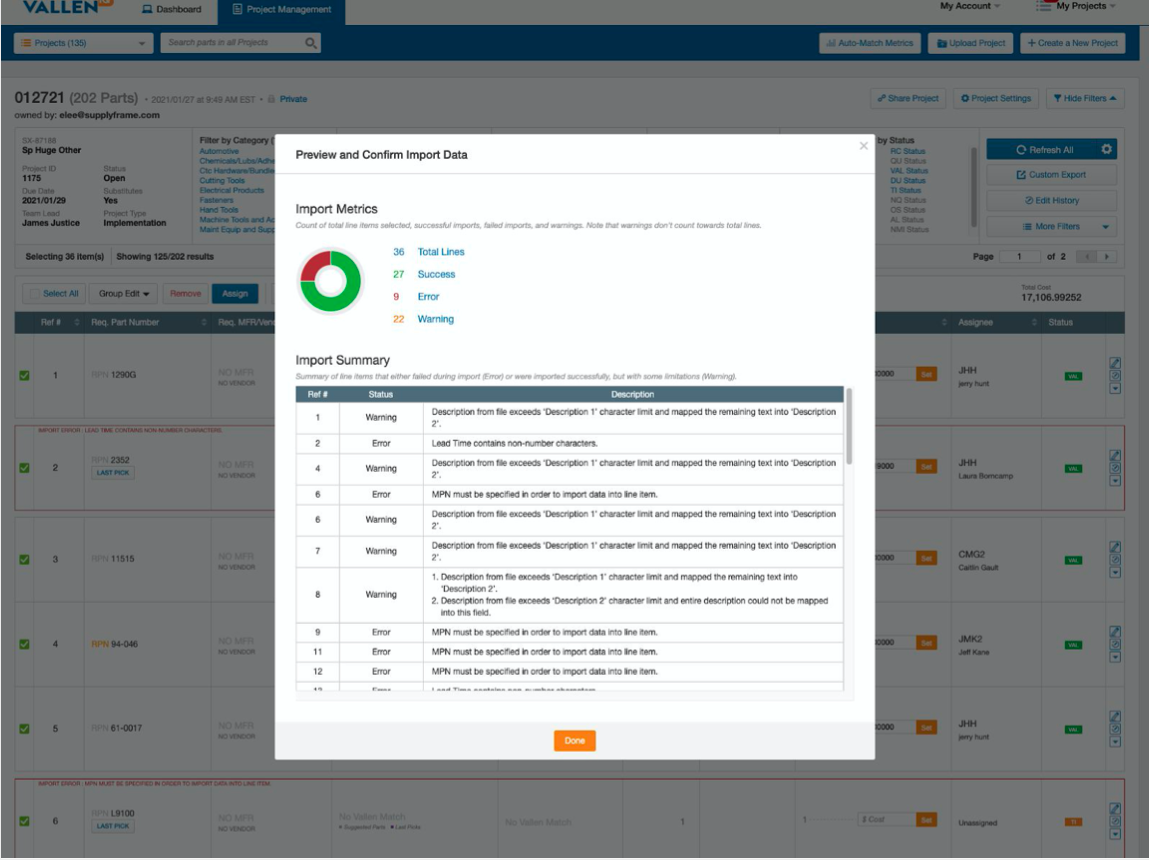
Lines imported with errors will also show details on your project page, but please note that these error messages will be temporary and not show if you refresh the page.